Environment of Care Rounds
Environment of Care (EOC) rounds help maintain facility safety through regular inspections.
Overview
EOC rounds involve:
- Following a route of inspection locations
- Scanning QR codes at each location
- Completing checklists
- Documenting issues
- Generating work orders for problems found
Starting a Round
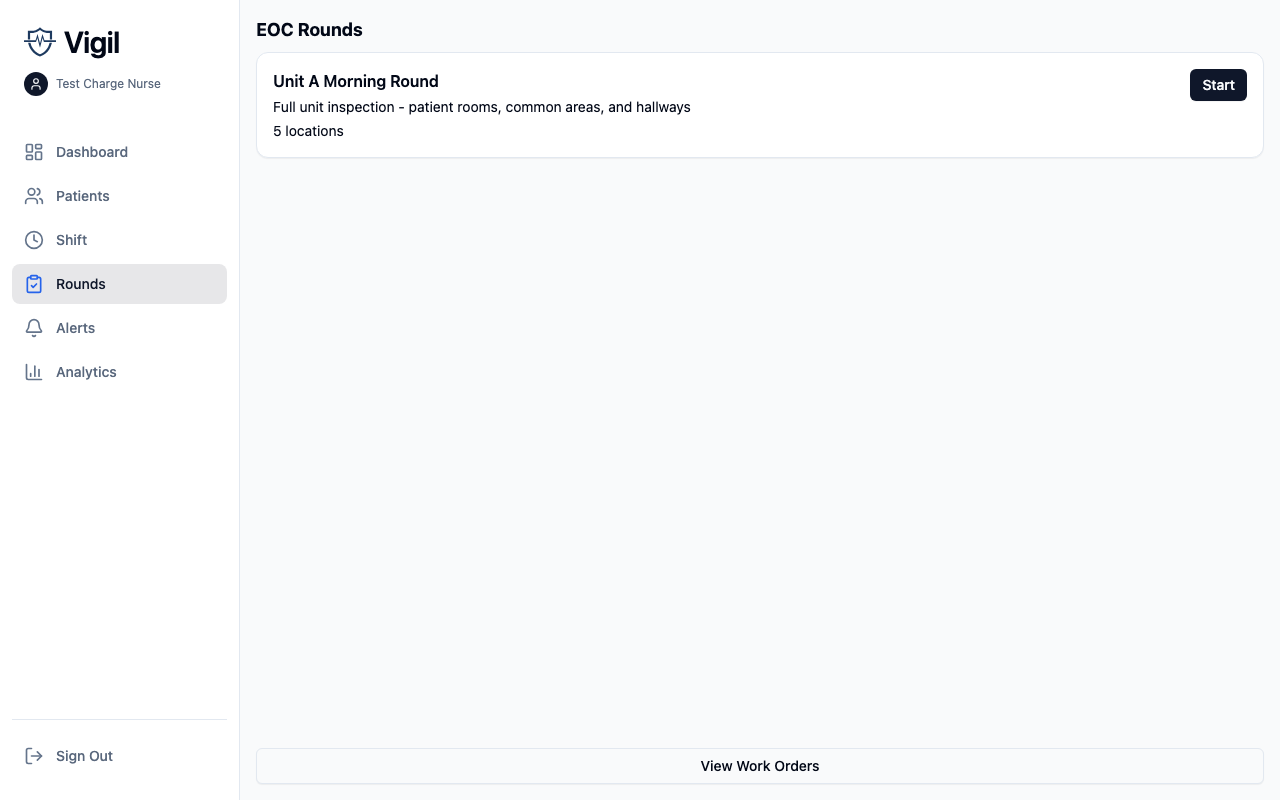
- Navigate to Rounds tab
- See available routes for your unit
- Tap a route to begin
- Follow locations in order
At Each Location
Scanning
- Tap Scan when you arrive
- Point camera at the QR code
- Wait for confirmation
The QR scan proves you were physically present.
Checklist
Complete the inspection checklist:
- Items specific to the location type
- Pass / Fail / N/A for each item
- Add notes for context
Documenting Issues
If you find a problem:
- Tap Report Issue
- Select severity:
- Low
- Medium
- High
- Critical
- Take photos
- Add description
- Tap Submit
Work Orders
Issues automatically generate work orders:
- Assigned to Facilities Maintenance
- Include photos and description
- Severity determines priority
- Track resolution status
Work Order Status
| Status | Description |
|---|---|
| Open | Newly created, not started |
| In Progress | Work has begun |
| Pending Verification | Work complete, needs follow-up |
| Closed | Verified complete |
Viewing Work Orders
- From Rounds tab, tap Work Orders
- Filter by status
- Tap a work order for details
Follow-Up Verification
Some work orders require follow-up:
- Facilities marks work as complete
- Work order moves to "Pending Verification"
- On next round, verify the issue is resolved
- Tap Verify Complete or Reopen
Routes
Routes define inspection paths:
- Ordered list of locations
- Specific to unit or area
- Can have frequency requirements (daily, weekly)
Route Compliance
The Rounds tab shows:
- Routes due today
- Completed rounds
- Overdue routes
Location Types
Common inspection location types:
| Type | Example Items |
|---|---|
| Patient room | Bed rails, call light, bathroom safety |
| Bathroom | Grab bars, cleanliness, supplies |
| Common area | Furniture condition, cleanliness, hazards |
| Medication room | Lock function, temperature, organization |
| Storage | Organization, expired items, accessibility |
| Exit | Signage, obstruction, alarm function |
QR Code Management
IT administrators manage QR codes:
- Navigate to Settings > Locations
- Add new locations with details
- Print QR codes for posting
- Associate sensors if available