Quick Tour
This walkthrough introduces the main features of Vigil.
Navigation
Vigil organizes features into tabs at the bottom of the screen (mobile) or a sidebar (web/tablet):
- Dashboard - Unit overview and compliance metrics
- Patients - Your assigned patients
- Shift - Current shift information and assignments
- Rounds - Environment of Care inspections
- Alerts - Active alerts requiring attention
Dashboard
The dashboard provides a real-time view of your unit:
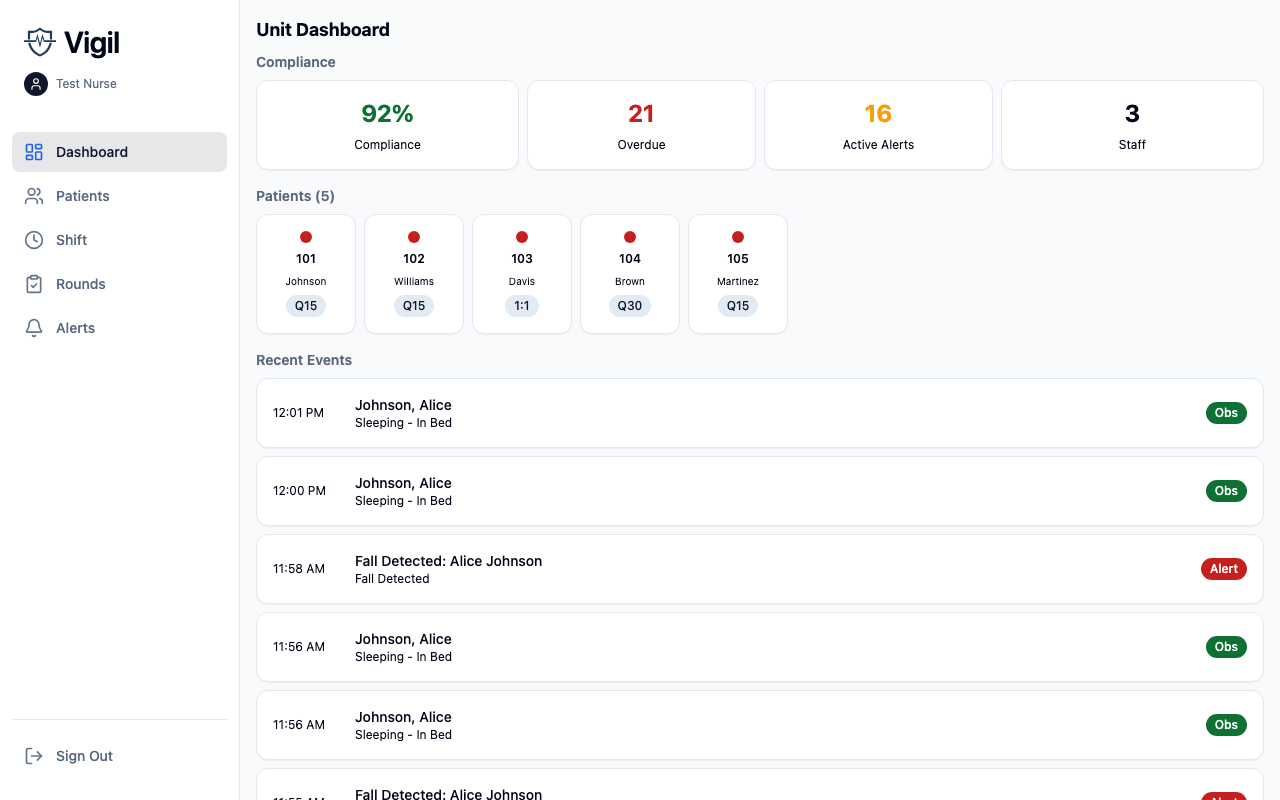
- Compliance metrics showing on-time observation percentage
- Patient status grid displaying all patients with their observation status
- Recent events timeline showing observations and alerts
- Nighttime indicator when nighttime protocols are active
Charge nurses see additional sections for staff performance and coverage gaps.
Documenting an Observation
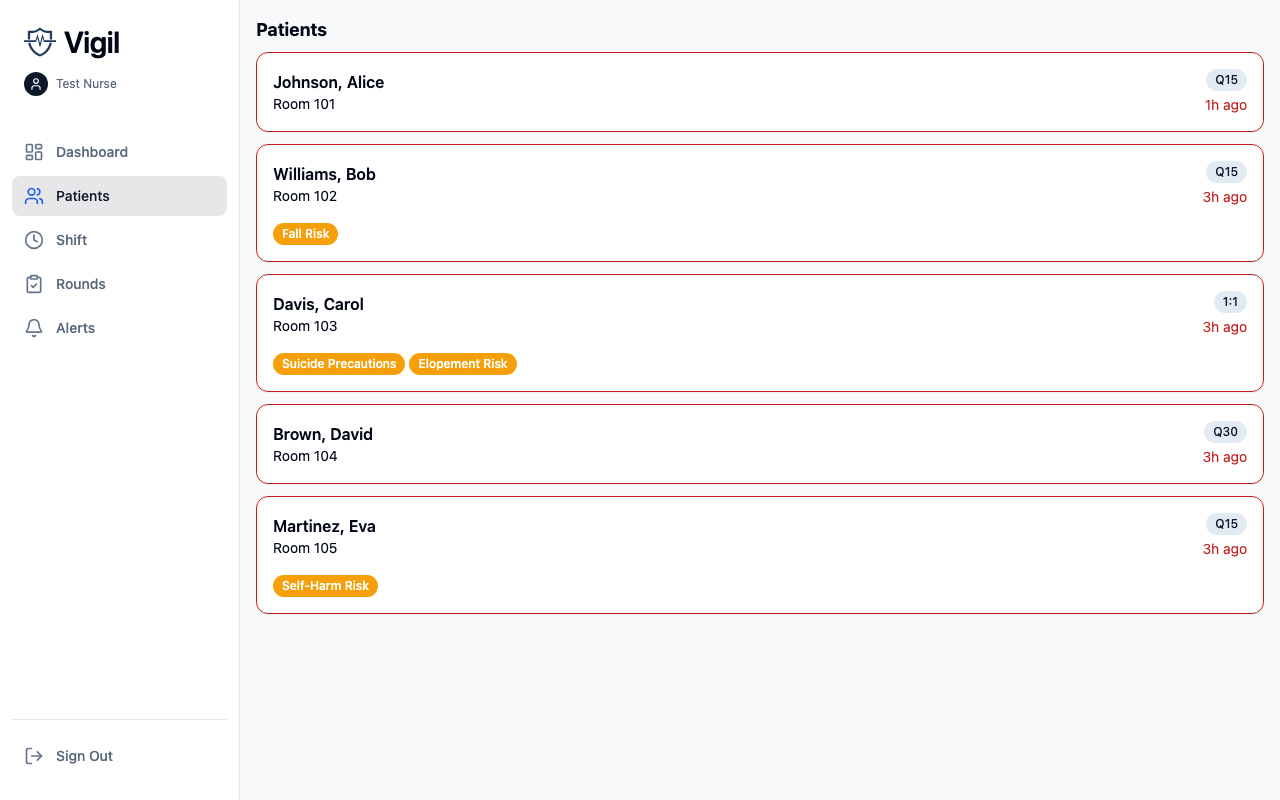
- Navigate to Patients
- Tap on a patient to open their detail screen
- Tap Observe tab
- Wait for proximity verification (or complete manual override)
- Select a quick template or choose status and location manually
- Add notes if needed
- Tap Submit
After submission, Vigil automatically advances to the next patient in your list.
Responding to Alerts
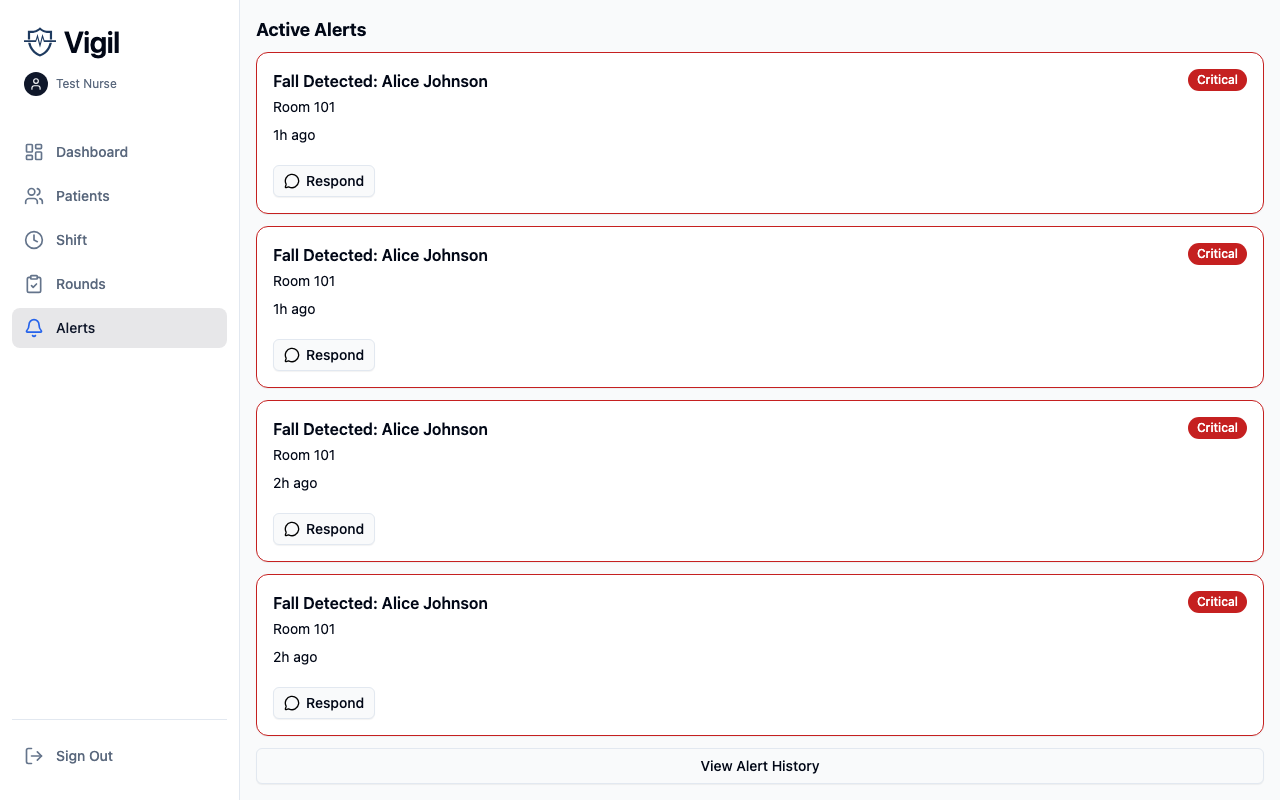
When an observation becomes overdue or a sensor detects an event:
- You receive a push notification
- Navigate to Alerts tab
- Tap an alert to view details
- Choose an action:
- Responding now - You're addressing the situation
- Delegate - Assign to another staff member
- Already resolved - Situation was already handled
For safety events (critical vitals, 1:1 gaps), you must document the action taken.
Starting Your Shift
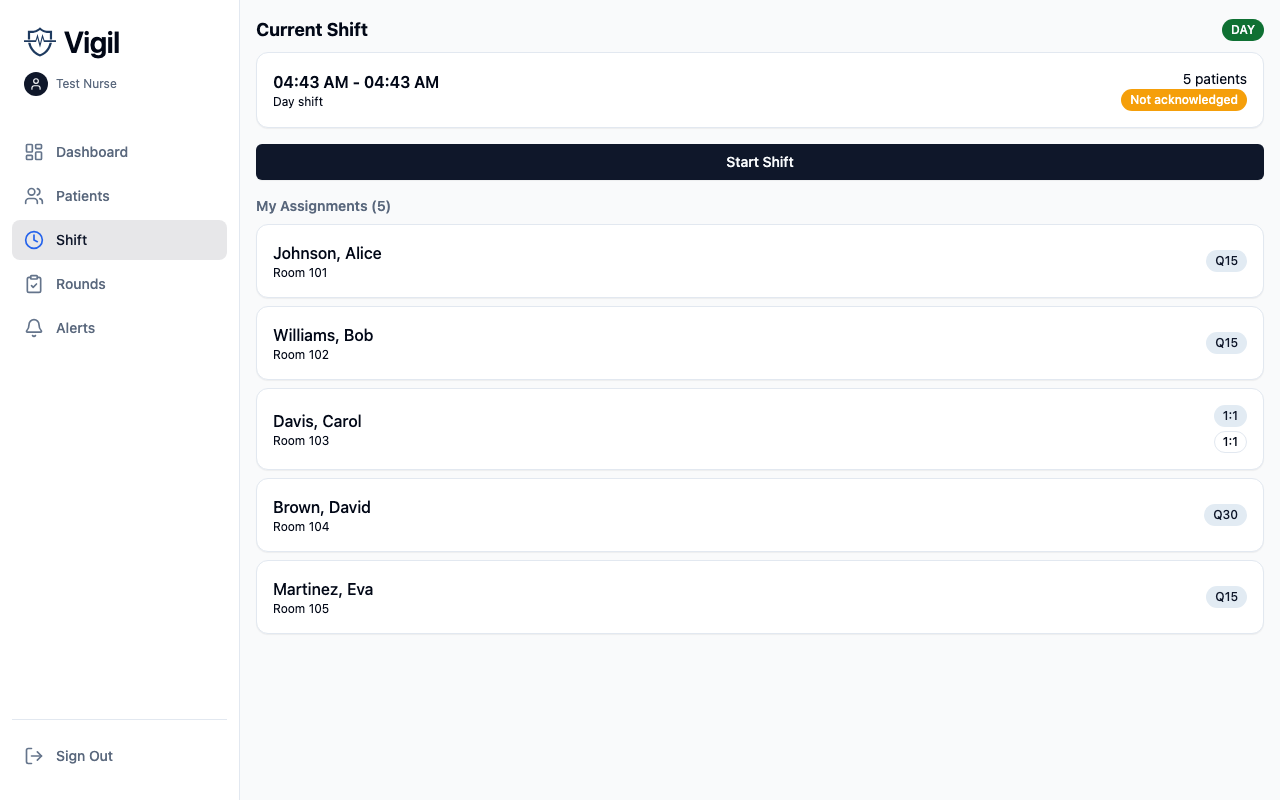
- Navigate to Shift tab
- Review your assignments and any handoff notes from the previous shift
- Acknowledge flagged items
- Tap Start Shift
You must start your shift before documenting observations.
Completing EOC Rounds
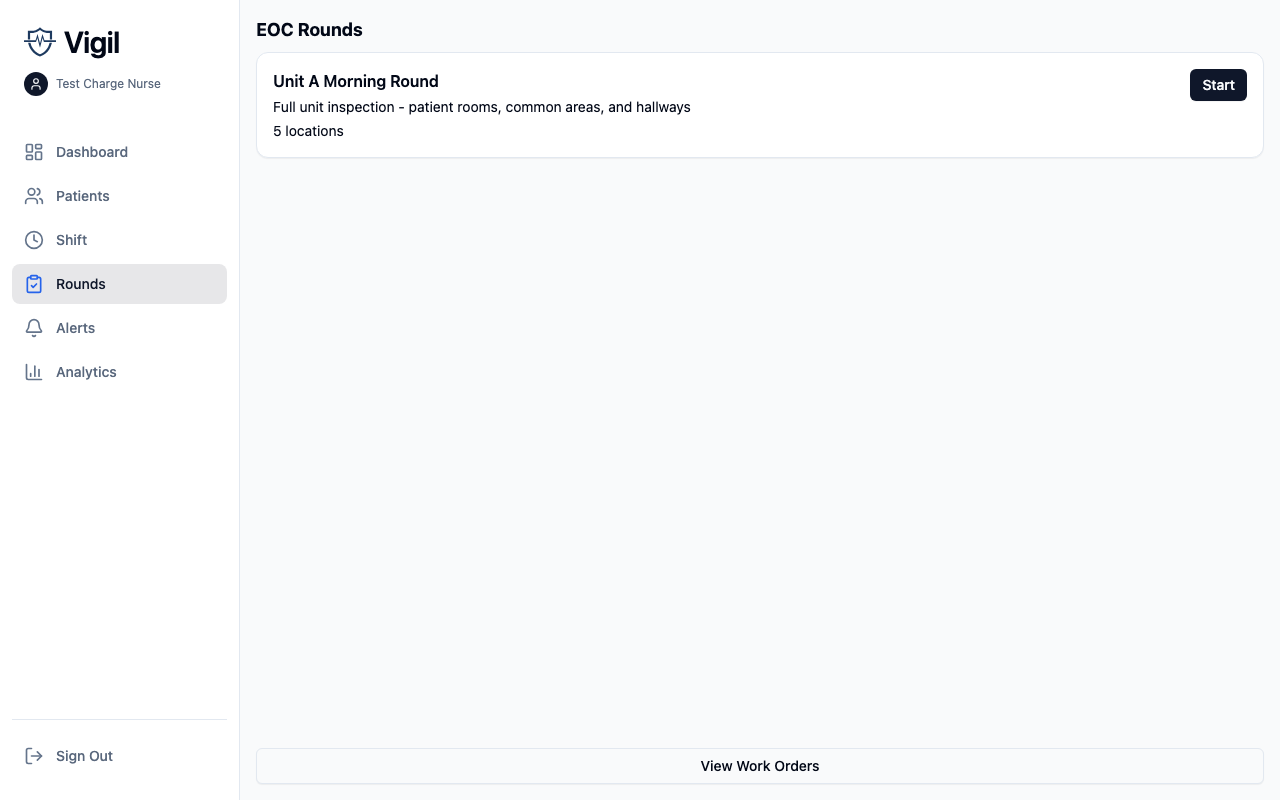
- Navigate to Rounds tab
- Select a route to begin
- At each location, scan the QR code
- Complete the checklist items
- Document any issues found (with photos if needed)
- Issues automatically generate work orders
Viewing Analytics (Charge Nurse+)
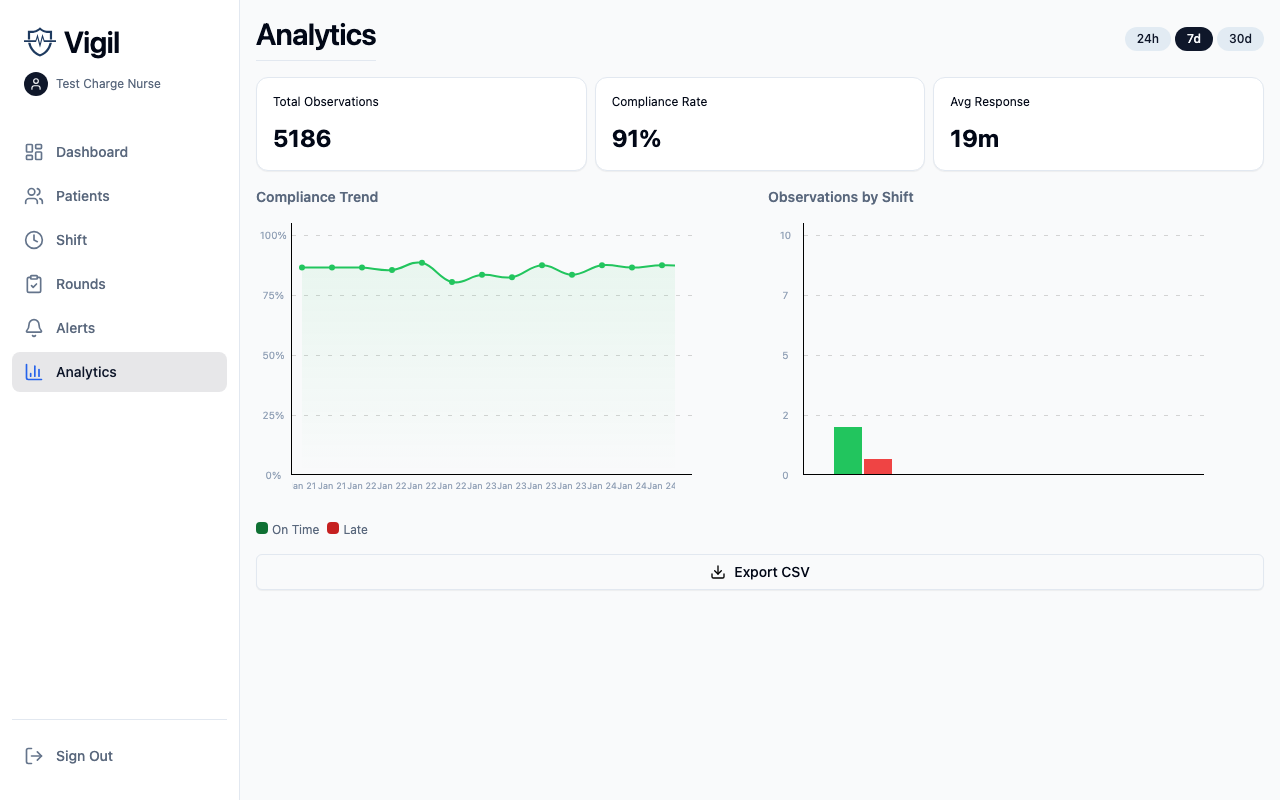
- Navigate to Analytics (via dashboard or sidebar)
- View compliance trends over time
- See observations by shift
- Export data as CSV for reporting
Next Steps
- Configuration - Learn how to configure your facility
- Clinical Workflows - Detailed workflow documentation