Sensor Integration
Vigil integrates with proximity sensors for automatic verification, fall detection, and patient monitoring.
Sensor Types
Sensor Hub
The sensor hub is an on-premise device that:
- Connects room sensors and wearables to Vigil
- Provides local processing for low-latency events
- Communicates securely with Vigil's cloud
Each facility needs at least one hub.
Room Sensors
UWB (Ultra-Wideband) sensors mounted in patient rooms:
- Detect staff and patient proximity
- Provide distance measurements (within ~1 foot accuracy)
- Support multiple simultaneous tags
One sensor per room is typical.
Wearable Tags
BLE/UWB tags worn by patients:
- Enable precise patient tracking
- Support fall detection
- Detect bed exits
- Monitor for elopement
Assign one tag per patient as needed.
Hardware Setup
Installing the Hub
- Connect hub to facility network
- Power on the hub
- Note the hub's MAC address or serial number
Registering the Hub
- Navigate to Settings > Devices
- Tap Add Device
- Select Sensor Hub
- Enter hub identifier
- Generate API key
- Configure hub with the API key
Installing Room Sensors
- Mount sensor in patient room (ceiling or wall)
- Power and network connect the sensor
- In Settings > Devices, add the sensor
- Associate with the hub and room
Configuring Wearables
- In Settings > Devices, tap Add Device
- Select Wearable Tag
- Enter device identifier
- Associate with the hub
Assign wearables to patients from the patient detail screen.
Proximity Verification
With sensors configured, Vigil automatically:
- Detects when staff enter patient rooms
- Records proximity events with distance
- Uses events for observation verification
Staff see "Proximity Verified" when documenting if a recent event exists.
Fall Detection
Room sensors detect falls by analyzing:
- Rapid downward motion
- Impact patterns
- Position changes
When a fall is detected:
- Alert created immediately
- Push notification sent to assigned staff
- Alert escalates if not acknowledged
Bed Exit Monitoring
During configured nighttime hours:
- Sensors monitor patient position
- Bed exit triggers an alert
- Staff notified to check on patient
Configure nighttime hours per unit.
Elopement Detection
For patients with elopement risk:
- Assign a wearable tag
- Configure geofence boundaries
- If patient crosses boundary, alert triggers
Geofencing requires room sensors at exit points.
Device Management
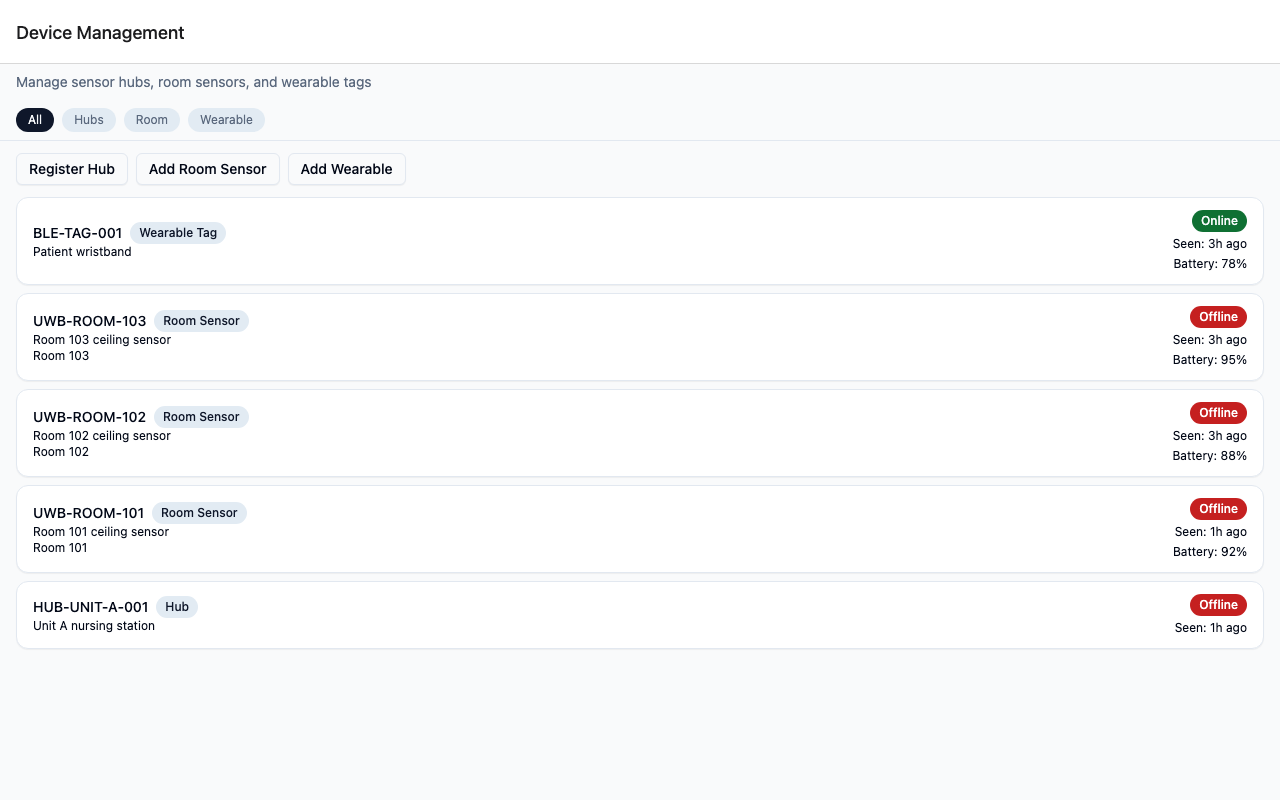
Viewing Device Status
Navigate to Settings > Devices to see:
- All registered devices
- Online/offline status
- Battery level (wearables)
- Last seen timestamp
Device Health Alerts
Vigil alerts when devices have issues:
- Device offline for extended period
- Battery low on wearable
- Hub communication failure
Troubleshooting
Device offline:
- Check power connection
- Verify network connectivity
- Restart the device
Proximity not detecting:
- Ensure room sensor is associated with correct room
- Check staff badge/device has BLE enabled
- Verify sensor has line of sight
Wearable not tracking:
- Check battery level
- Verify assignment to patient
- Ensure within range of room sensors
API Access
Sensor hubs communicate via the Sensor Ingest API.
For custom integrations, see the API documentation.